


PDF Master
3.36.00 Reviews
App Specs
- Version
- 1.0.3
- Updated On
- License
- Free
- Downloads
- 10,000+
- Developer
- Bang Jorghy Dev
- Categories
- Tools
- Platform
- Android
Screenshots
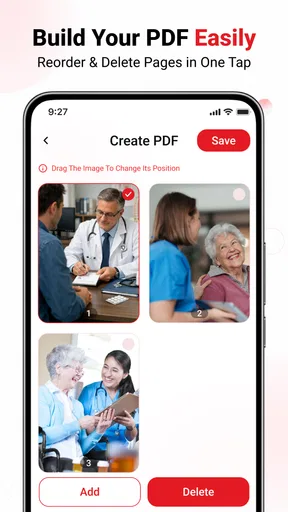
 Analysis by AppCompare
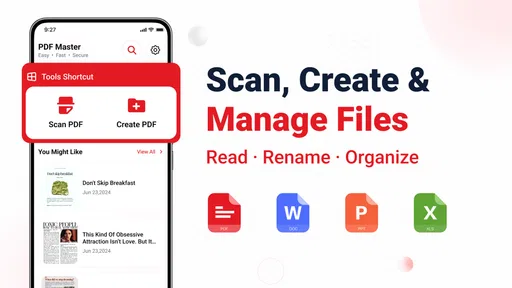
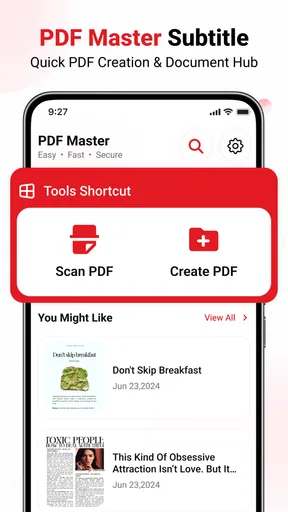
When I need to open a PDF, turn a paper document into a digital copy, or gather a few files in one place, I want a tool that makes the next step obvious. PDF Master is built around those everyday jobs: reading PDFs, scanning documents, creating PDFs, and locating files. Its appeal is that it brings several related tasks together rather than asking you to jump between a viewer, a scanner, and a file utility.
I would approach it as a practical utility, not as a full office suite. The first useful test is simple: find a PDF you already have, open it, and see whether the app fits the way you handle documents. If that feels comfortable, try scanning a page you need to keep. That small sequence tells you more than a long setup process would.
Before you begin: choose a small, clear task
For a first-time user, the least stressful way to start is to decide what success looks like before opening the app. Perhaps you need to read a saved instruction sheet, or preserve one paper notice. Pick one task, not a whole pile of documents. This makes it easier to tell whether the app’s basic flow suits you and avoids turning an initial trial into an unnecessary file-cleanup project.
It is also sensible to keep the paper original or existing source file until you have checked the result. A PDF is useful only if the important information came through clearly and you can retrieve it again. That simple backup habit gives you room to learn the workflow without worrying that one imperfect first attempt has replaced the only copy.
What to expect from a focused PDF tool
PDF Master is a free document and file tool from Bang Jorghy Dev. It is rated for Everyone and has an average rating of 3.3 from around 80 ratings, so I would treat it as an option to try rather than assume it will suit every workflow. It has over 10,000 installs, and version 1.0.3 is the current release. The app runs on Android 8.0 or later.
The core idea is straightforward: use one app for several PDF-related actions. That can be handy when you receive a form, need to inspect it, and later want to make a digital copy of a paper page. Instead of deciding which specialist app to install first, you can begin with the task at hand and judge whether the combined approach is enough.
That convenience has a trade-off. A dedicated PDF reader may be a better fit if your priority is detailed annotation, complex document handling, or a highly polished reading experience. A dedicated scanner may suit you better when image cleanup and scan controls matter most. I would see PDF Master as a sensible starting point for routine document chores, not automatically a replacement for every specialist tool.
Worth Reading Before You Choose

Flipboard Shows What News Apps Must Do Beyond the Feed

Switching to Android Auto Means Rethinking Your Driving Routine

Google Calendar Makes a Crowded Week Easier to Manage

Ludo King Makes the Most of the Minutes Between Plans

Baby Panda World Brings Quick Play to Modern Phones, but Its Game Library Feels Busy

ESPN’s Live Game View Makes Following Close Games Easier
Start with a file you already recognize
For a first launch, I recommend opening a familiar PDF rather than immediately scanning something important. Choose a document you can identify easily, such as an instruction sheet or a saved form. This lets you check the basic reading experience without risking an original or spending time deciding how to name a new file.
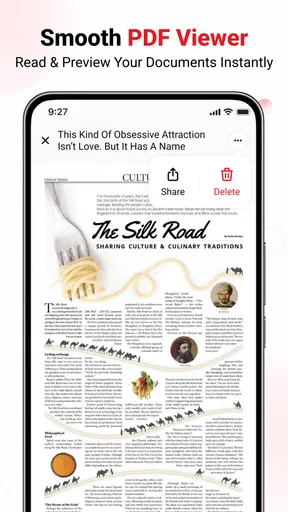
After opening it, notice whether you can comfortably move through the pages and return to the file when needed. The practical question is not whether the app has every advanced reader feature; it is whether the document is easy enough to find and use for the kind of quick reference you actually need. If your PDFs are usually short and occasional, that basic convenience may matter more than a long feature list.
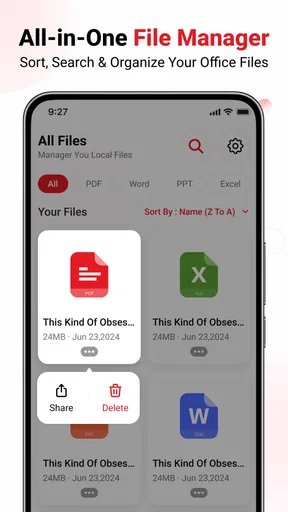
File discovery deserves attention early. A document app is only useful if you can retrieve the output later, so try to develop a simple naming habit from the beginning. Names such as “utility bill” or “signed permission form” are easier to recognize than a vague label when several similar files accumulate. Keep names descriptive but avoid putting sensitive details into a filename that may be visible in a file list.
Make the first scan a low-stakes test
Once reading feels clear, scan a page that is easy to repeat if the result is not right. Lay it flat, use even light, and keep the whole page in view. These ordinary steps often make a bigger difference to the usefulness of a scan than taking several rushed attempts. Check the resulting document before relying on it: confirm the text is legible, the edges are present, and the page is not tilted enough to make reading awkward.
A useful first workflow is to scan a receipt or a single-page notice, inspect the PDF, then try to locate it again through the app’s file-finding tools. This checks the full chain rather than just the camera step. If you can create a readable file and find it later without guessing, you have reached a meaningful first success.
For multi-page paperwork, work in a deliberate order. Put the pages in sequence before scanning and review the finished document before sharing or filing it. This simple habit prevents a common annoyance: discovering later that a page is missing or that the pages are out of order. If the app’s available controls do not give you the arrangement or cleanup you need, it is better to use a scanner designed for that job than to assume a basic scan will be suitable.
Understand what “create a PDF” means for your task
Creating a PDF can mean different things in daily use: making one from a scan, or turning material you already have into a document. Start by identifying which kind of source you are working with and check what the app offers for that particular job. I would not assume every file type or conversion path is supported just because the app handles PDFs.
If you need to send a paper form, a scan is often the clearest first route. If you already have a document in another format, check whether the available creation flow accepts it before organizing your work around that conversion. This is especially useful when a deadline is involved: test the process with a nonessential file first, rather than discovering a limitation after preparing the important document.
Keep the original source until you have opened and checked the finished PDF. That small precaution is worthwhile whether you are scanning a page or creating a new document. It gives you a fallback if the result is incomplete, hard to read, or saved somewhere you did not expect.
Common points of friction to watch for
The most likely confusion for a first-time user is mixing up the different stages: locating an existing PDF, reading it, scanning a paper page, and creating a new PDF are related but not identical tasks. When something does not go as expected, pause and identify which stage you are in. If a file is missing, look for it before repeating the scan; otherwise, you may create duplicate copies and make the folder harder to manage.
Another practical issue is that a scan is not automatically a clean, searchable, or submission-ready document just because it has been saved as a PDF. Read the result yourself. Check small print, page orientation, and whether the edges of the paper were captured. For an official form, a blurry or cropped page can cause more trouble than using a separate scanner app would have taken.
It also helps to separate “I can open this” from “I can work with this in depth.” PDF Master’s main draw is its set of everyday PDF tasks. If you regularly need extensive markup, document signing workflows, or specialized file management, compare it with tools built specifically around those needs. The right choice depends less on the app’s broad purpose than on the steps you repeat each week.
A realistic use case: keeping a household paper trail
Imagine you receive a paper warranty note and want a copy you can find when the appliance needs attention. I would scan it in good light, inspect the page for clipped text, and give the resulting file a clear name tied to the item. Then I would reopen it through the app’s file-finding route, rather than assuming it will be obvious later. That final retrieval check is easy to skip, yet it is what turns a scan into a useful record.
The same approach works for a school notice, a travel document you are allowed to copy, or a receipt you want to keep temporarily. For highly sensitive paperwork, think carefully before storing or sharing a digital copy, and use the device’s normal privacy safeguards. The app’s usefulness here is convenience; the user still needs to decide what should be scanned and where it should be kept.
When a combined app is better than separate tools
The practical comparison is less about which tool has the longest list of capabilities and more about how often you switch tasks. If you occasionally read a PDF, preserve a paper page, and later need to find the result, keeping those jobs in one place can reduce the mental overhead of choosing and learning several apps. That is the situation where I would try this app first.
On the other hand, someone who scans stacks of paperwork every week may benefit more from a dedicated scanner with controls tailored to repeated capture and cleanup. A reader built for study or work may be preferable if comments, highlighting, and close document review are routine. You can still use a general-purpose app for quick tasks, but there is little value in forcing it to cover a specialist workflow it does not handle comfortably.
One useful compromise is to treat PDF Master as an intake point rather than your entire document system. Use it to open or create a simple file, inspect the result, and then move or organize the document using the approach you already trust. This avoids expecting a lightweight PDF utility to replace a full filing routine while still taking advantage of its convenience for one-off jobs.
Who will get the most from it
I can see PDF Master suiting someone who handles occasional PDFs and wants a single place to begin reading, scanning, and making documents. It is also approachable for a first-time user who would rather test one general-purpose app before building a collection of separate utilities. The fact that it is free makes that trial less of a commitment, while its modest average rating is a reason to judge it by your own routine rather than expect a perfect fit.
I would look elsewhere if PDF work is central to your job and you depend on advanced editing, reliable batch processing, or a specific professional review workflow. I would also choose a specialist scanner if scan quality and image adjustments are the main reason for installing an app. A broad tool can be convenient for occasional use, but convenience does not guarantee depth in every part of its work.
It may also be the wrong first choice if you need a guaranteed path for a particular file format or a formal submission process. Test the exact task with an unimportant document before you depend on it. For work where a missing page, unreadable print, or unsupported conversion would have consequences, choose a tool you have already confirmed fits that requirement.
Turn a successful first try into a repeatable habit
After your first scan or PDF opens correctly, settle on a small routine: use descriptive filenames, check each new document, and test that you can find it again. For documents you need to send, inspect the copy before sharing it and make sure it contains only the pages you intend to include. These steps are more dependable than relying on memory about where a file went.
My overall view is that PDF Master is worth trying when you want a straightforward entry point for common PDF tasks on Android. Its strongest case is the simple combination of reading, scanning, creating, and finding documents. Its limits matter most when you need specialist control or have paperwork that cannot tolerate a poor scan. Begin with a familiar file, follow it with a low-stakes scan, and keep using it only if that path feels clear and dependable for your needs.
Pros
- Supports common PDF tasks such as viewing
- editing
- and converting documents.
- Search makes it easier to find specific text in lengthy PDFs.
- Annotation tools are useful for highlighting and adding notes.
- A built-in document manager helps keep files organized.
- Handy for handling PDFs on the go without a desktop computer.
Cons
- Some advanced tools may require a paid subscription or in-app purchase.
- Editing complex layouts can be less precise than with desktop software.
- Large PDFs may take longer to open or process on older devices.
- Converted documents may not retain all original formatting.
- Access to files and tools may depend on app permissions and device storage.
FAQs for PDF Master
What is PDF Master used for?
PDF Master is designed to help you work with PDF documents on a mobile device. Depending on the version and features available, it may let you open and read files, organize documents, and perform tasks such as converting, merging, compressing, or annotating PDFs. Check the app listing for the exact tools included, since features can differ by platform, edition, or subscription.
Is PDF Master free to download and use?
PDF Master may be available to download without an upfront charge, but some tools or usage limits could require a subscription, a one-time purchase, or in-app payment. Before downloading, review the store listing for pricing, trial terms, and what is included in the free version. Also check whether a trial renews automatically and how to cancel it if you decide not to continue.
Can I use PDF Master to edit or convert PDF files?
The available editing and conversion options depend on the specific PDF Master app and version. Some PDF tools support actions such as adding notes, filling forms, rearranging pages, or converting documents, while others focus mainly on viewing and managing files. Confirm that the feature you need is listed in the app description, and consider testing it with a copy of a document before relying on it for important work.
Does PDF Master work offline, and where are my documents stored?
Basic tasks such as opening a PDF already saved on your device may work offline, but features involving online conversion, cloud storage, account access, or sharing can require an internet connection. Storage and backup behavior can vary, so review the app’s permissions and privacy information to understand whether files remain on your device or may be uploaded to a service. Avoid processing sensitive documents until you are comfortable with those terms.
Is PDF Master safe to use for private or confidential documents?
Safety depends on the publisher, the app’s current privacy practices, and the permissions it requests. Download PDF Master only from a trusted app store, check the developer details, recent reviews, and privacy disclosures, and grant access only when necessary. For confidential files, look for clear information about encryption, storage, and data sharing; do not assume a document stays private simply because it is opened in a PDF app.


